
Google updated four Merchant Center Help pages about Product Ratings, the program that shows star ratings on Shopping ads and free listings, in a change our help page watcher detected on November 21, 2026. The pages no longer tell merchants to apply through the Product Ratings interest form. They now describe joining the program directly in Merchant Center: select Reviews in the left navigation menu, choose the join button, then upload a product reviews data source. The change matters to merchants who want to submit their own reviews without a third-party reviews aggregator.
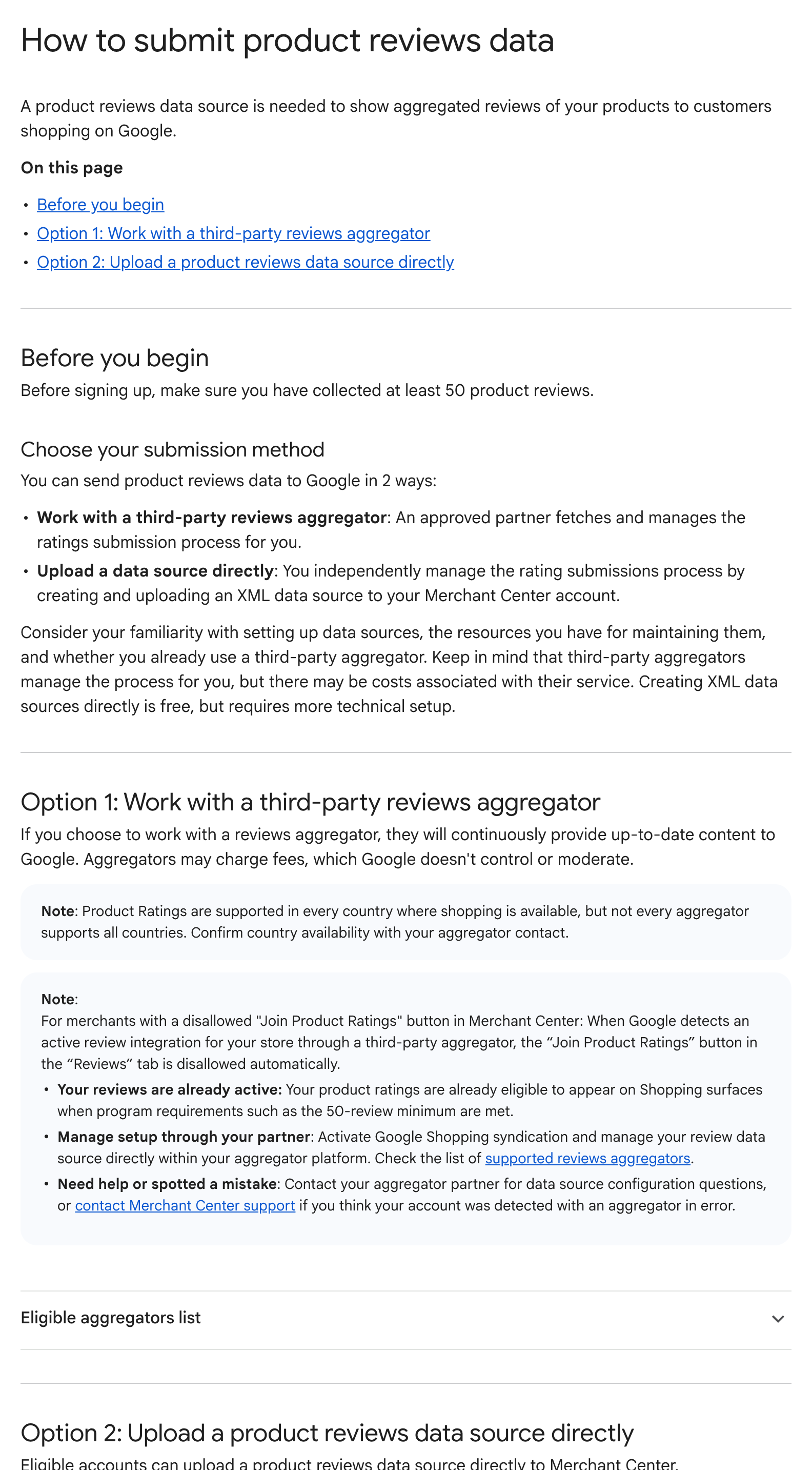
How do you join Product Ratings in Merchant Center now?
Before the update, the How to submit product reviews data page said: "To participate, you must sign up for Product Ratings using the interest form." The Data Source specifications page said merchants had to submit the Product Ratings Interest Form first and could upload a data source only if approved.
Both sentences are gone. The pages now describe these steps:
- Your Merchant Center account must be associated with your verified business website, according to About Product ratings.
- Select Reviews in the left navigation menu.
- Select the join button. The About page calls it Join Product Ratings; the Data Source specifications and Product Ratings eligibility pages call it Join Product Reviews.
- Upload a product reviews data source that includes unique product identifiers such as GTIN, or Brand and MPN.
The How to submit page lists three ways to add the data source: a link to a hosted file with a scheduled fetch, SFTP or Google Cloud Storage, or a file upload from your computer. Reviews can also be added through an API.
Some requirements did not change. The pages still state:
- At least 50 reviews across all your products.
- A data quality and policy review by Google specialists, with reviews typically going live 2 to 4 weeks after a successful review.
- A data source sent at least once a month to remain eligible.
The Product Ratings eligibility page now says Merchant Center shows an inactive status for approximately 3–4 days during initial onboarding. The earlier version also said the status would show inactive during the 2 to 4 weeks of onboarding.
Merchants already using an aggregator
The About and How to submit pages add a note for merchants whose reviews already reach Google through an approved aggregator. When Google detects an active review integration for the store, the Join Product Ratings button in the Reviews tab is disallowed automatically. The How to submit page says these merchants' ratings are already eligible to appear on Shopping surfaces when requirements such as the 50-review minimum are met, and that setup is managed through the aggregator. If you think your account was flagged by mistake, the pages say to contact Merchant Center support.
Why it matters for advertisers
Under the old wording, a merchant without an aggregator had to apply and wait for approval before uploading anything. If the help pages reflect how the product works, merchants could now start the onboarding review sooner. The 2 to 4 week review period still applies, so star ratings would not appear on Shopping ads straight away.
The How to submit page also notes that aggregators may charge fees, while creating XML data sources directly is free but requires more technical setup. For smaller stores that collect reviews on their own site, the direct route could become easier to consider.
What to do now
- Check the Reviews menu. Open Merchant Center and see whether the join button appears for your account. Google's pages use two names for it, so look for either.
- Count your reviews. Make sure you have at least 50 reviews across your products before joining.
- Prepare identifiers. Check that your reviews XML includes GTIN, or Brand and MPN, that match your product data.
- Plan a monthly refresh. A scheduled fetch from a hosted file is the method Google recommends and could help you meet the monthly submission requirement.
- Aggregator users: if the button is greyed out, your ratings are likely handled through your partner. Check with them before setting up a second data source.